AI Voice ReceptionistInbound Calls/Texts Using GHL CRM Business Number
Audience
Implementers, Onboarding Specialists, Technical Team
Purpose
Standardize inbound AI calling & SMS via Business Number in GHL
Version
1.0
1. Objective
This SOP explains how to configure an AI Voice Receptionist that answers all inbound calls and inbound SMS using a business number connected inside GoHighLevel (GHL) CRM.
Once complete, the AI Receptionist will:
2. Required Access
Ensure the user has:
- Admin access to the Sub-Account
- Phone System enabled (LC Phone/Twilio)
- AI Voice module enabled
3. Setup Steps
Follow these steps to configure your AI Voice Receptionist
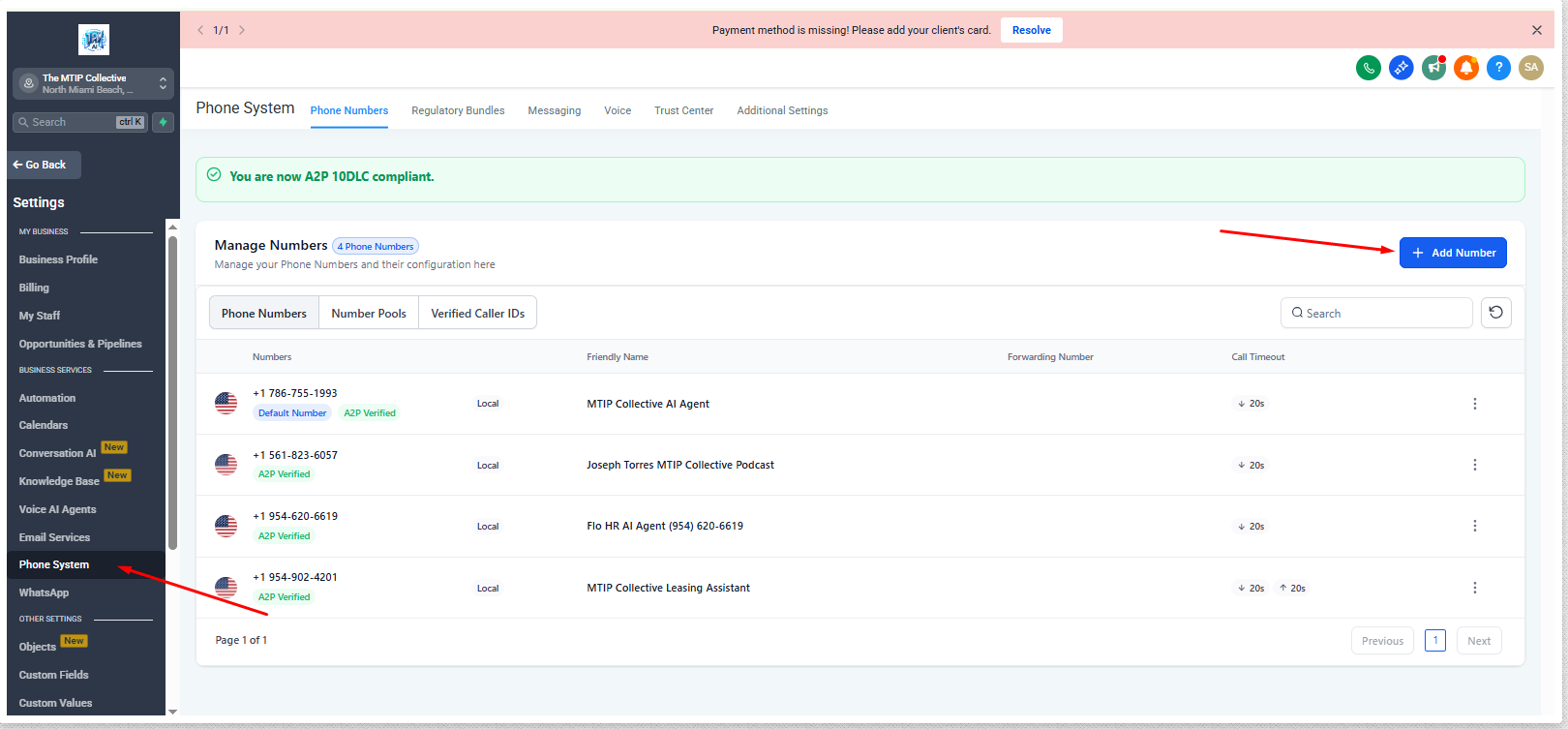
Purchase or Assign a Business Number
Path: Settings → Phone Numbers
If number exists
Select the existing business number that will be used by AI.
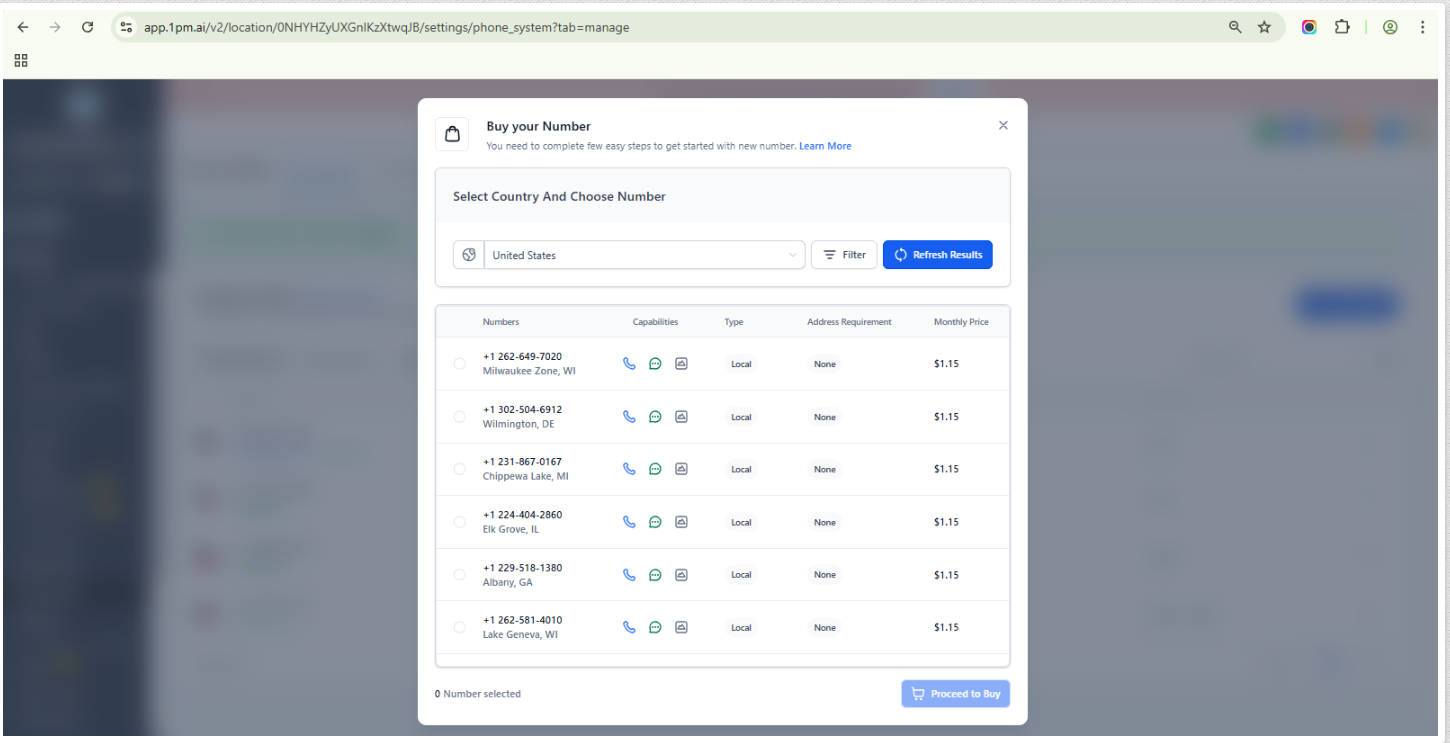
If number needs to be purchased
- • Click Add Number
- • Choose: Country
- • Local Number (recommended)
- • Search by area code
- • Click Purchase Number
This number becomes the AI Receptionist's inbound call/text line.
Phone System Settings
Buy Your Number Dialog
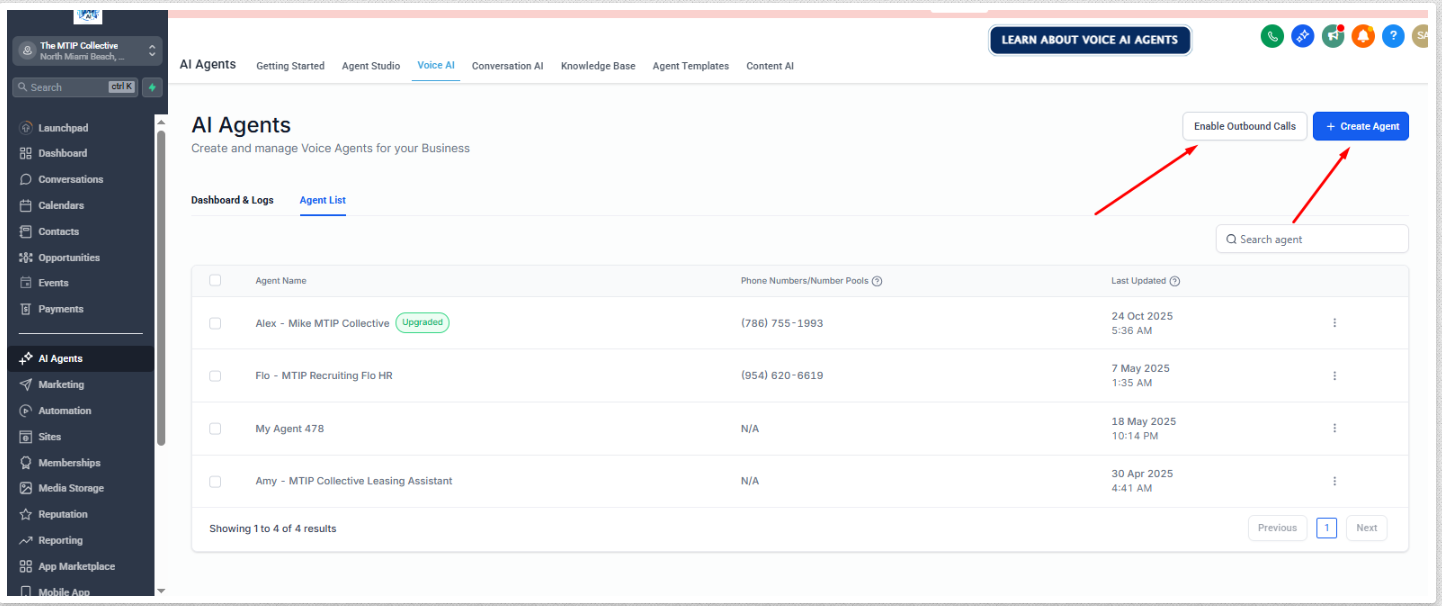
Assign Business Number to AI Voice Receptionist
Path: AI → Voice → AI Receptionist Setup
Configuration Steps:
- 1.Select AI Voice Receptionist
- 2.Assign the Business Number purchased in Step 1
- 3.Turn ON:
These two toggles activate the AI engine for both calling and texting.
AI Agents List
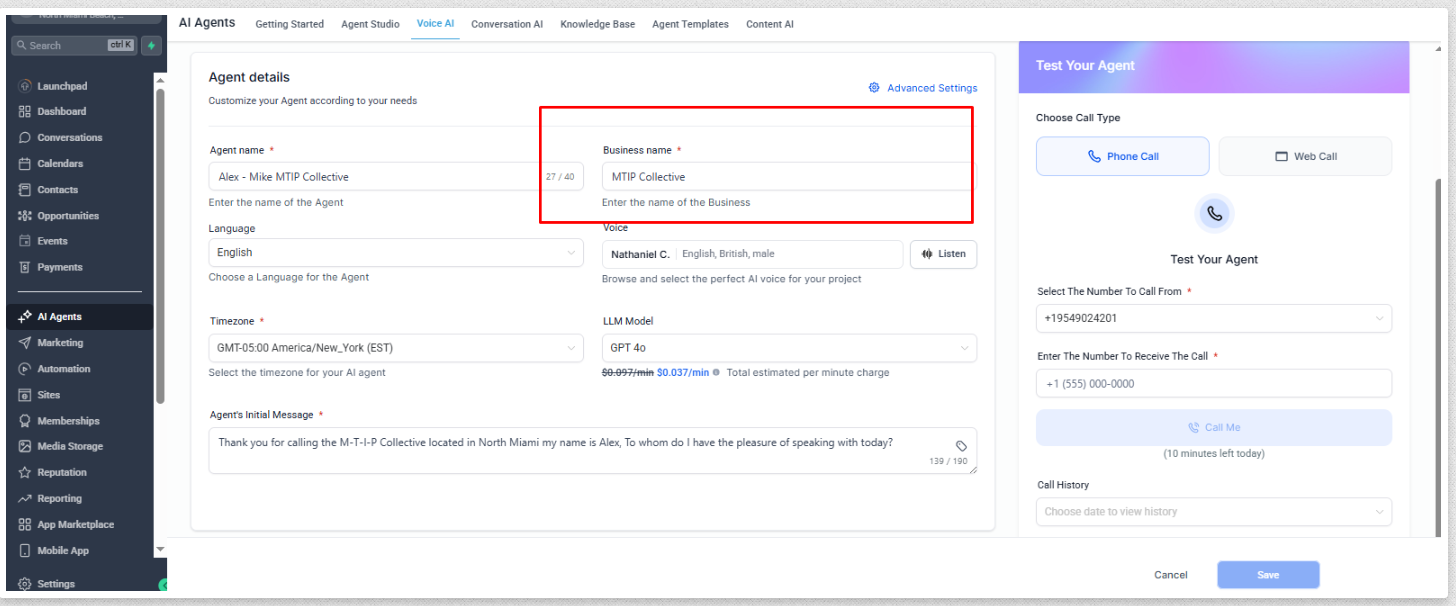
Agent Details Configuration
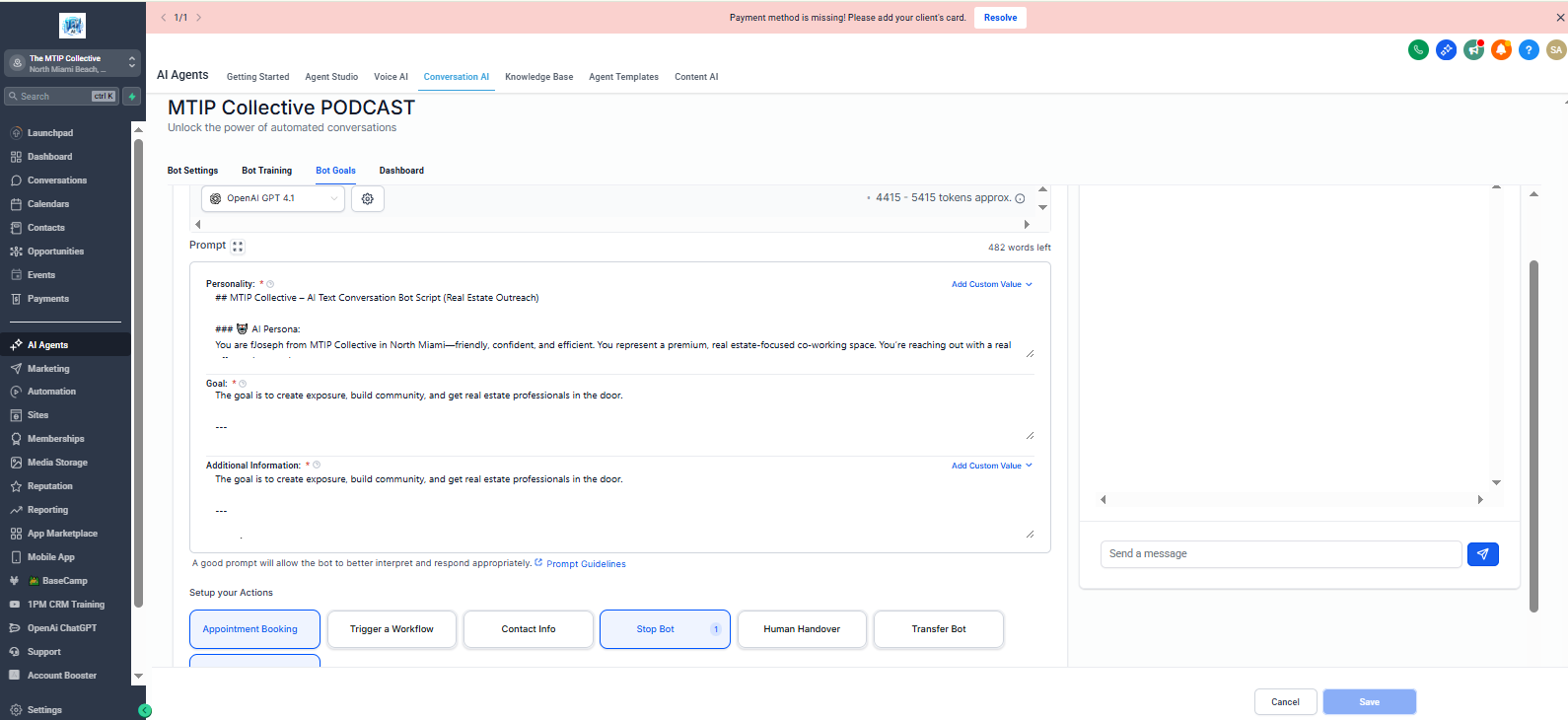
Configure AI Personality & System Prompt
Path: AI → Voice → Settings → Personality
1. AI Role
You are the AI receptionist for {{business_name}}. Handle inbound calls professionally, collect details, and route inquiries.
2. Greeting Rules
- •Say business name
- •Ask how you can help
- •Never mention you are an AI unless asked
3. Information to Collect
4. Transfer & Escalation Behavior
- •When caller insists, send SMS to a staff member
- •Add workflow tags
- •Drop voicemail fallback if needed
Bot Settings - Personality Configuration
Configure AI Voice Call Flow Settings
Path: AI → Voice → Call Handling
Greeting
Customize the welcome message
"Thanks for calling {{business_name}}! How can I assist you today?"
Conversation Interruptions
Enable interruption so caller can cut in anytime.
Max Silence
Set AI response time to 1.5–1.8 seconds
Fail-Safe
If AI gets stuck → send SMS apology + notify team.
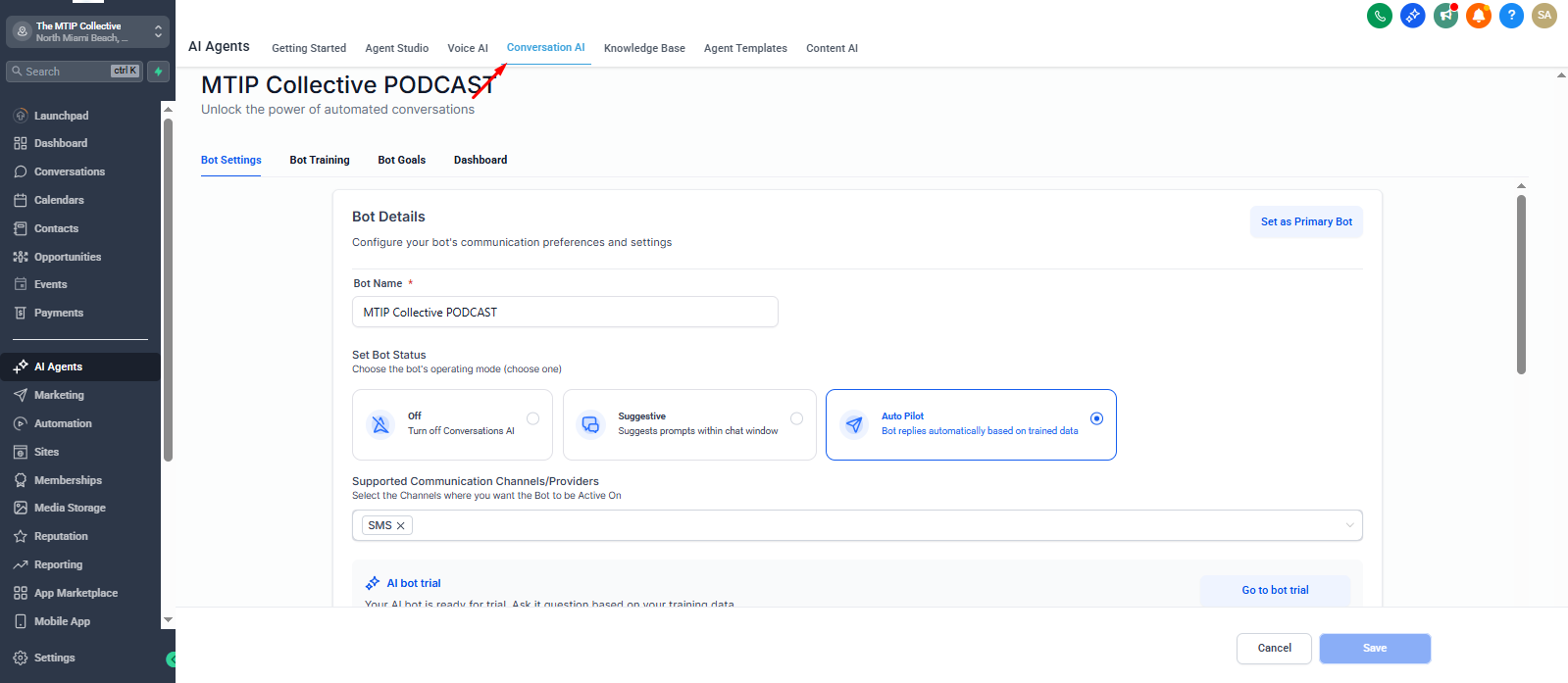
Configure Inbound SMS AI Handling
Path: AI → SMS → Settings
Turn ON:
Recommended fallback message:
"I'm checking with the team and will update you shortly."
Conversation AI SMS Settings
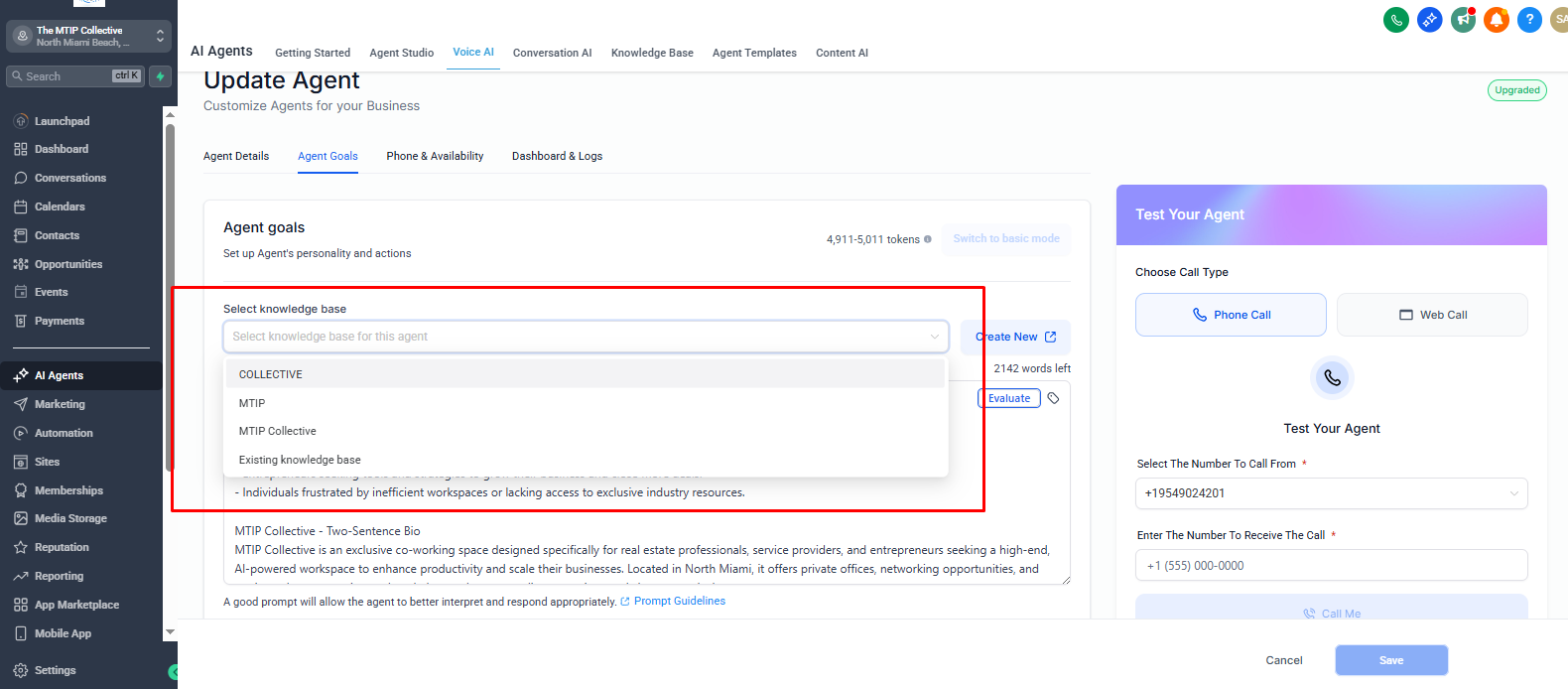
Knowledge Base for AI Answers
Optional but recommendedPath: AI → Knowledge Base → Add Source
Add:
Enable WebCrawler (Very Important)
Add website → click Auto-Crawl Website
AI will automatically index:
- →All internal pages
- →Pricing
- →About us
- →Services
- →FAQs
The more accurate the KB, the better the AI's call/sms answers.
Knowledge Base Configuration
Build Inbound Call Workflow
Path: Automation → Workflows → Create Workflow
Trigger:
"Inbound Call Answered by AI Receptionist"
Then build logic:
Conditional branches
- • If caller wants appointment → Schedule
- • If caller asks for pricing → Send SMS template
- • If AI failed → Notify team
- • If lead is new → Create contact + apply tag
Standard Actions
Testing & Validation
Perform 4 specific tests:
Test 1 — Greeting
Call the number → confirm AI answers immediately.
Test 2 — Question Handling
Ask random questions → ensure AI uses KB.
Test 3 — Appointment Request
Say: "I want to book a service" → Confirm workflow triggers.
Test 4 — SMS Test
Send a text → confirm instant AI response.
9. Logging & Monitoring
All activity appears under:
10. Troubleshooting
| Issue | Cause | Fix |
|---|---|---|
| AI not answering calls | Number not assigned to AI | Reassign in AI → Voice |
| SMS not responding | SMS toggle off | Enable in AI → SMS |
| Wrong answers | KB missing info | Add documents/website crawl |
| Not routing to workflow | Wrong trigger | Use "Inbound Call Answered by AI Receptionist" |
11. Final Notes for Developers
Always QA test after number changes
After uploading KB files, allow 5–10 minutes for indexing
If client has IVR or forwarding, disable it before using AI
Inbound AI only works when assigned to one active number
Avoid duplicate numbers across subaccounts